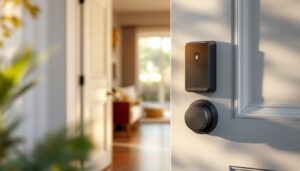
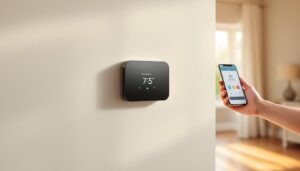
A forgotten passcode, a stuck connection, or a fresh start after a security concern, there are solid reasons to reset your Kwikset smart lock. Whether you own a Kwikset Halo, an older Gen 2 model, or another variant, the reset process is straightforward if you know where to look. This guide walks you through the exact steps to factory reset your Kwikset smart lock, get it reconnected, and troubleshoot the hiccups that sometimes pop up along the way. You’ll be back to keyless entry in minutes without needing a locksmith or a call to tech support.
Table of Contents
ToggleKey Takeaways
- A Kwikset smart lock reset erases all codes and pairings, so notify household members before proceeding and ensure you have fresh batteries and the Kwikset app updated to the latest version.
- Access the reset mechanism by opening the battery compartment on the interior side of the lock and using a pin tool to hold the reset button for 10–15 seconds until you hear a click or see a light signal.
- After completing the reset, create a strong new master code (4–6 digits) and reconnect via the Kwikset app using Bluetooth-first pairing by holding your phone within 6 inches of the lock.
- Test your Kwikset smart lock manually using the keypad and remotely through the app before closing the door to ensure the reset and reconnection were successful.
- If the Kwikset smart lock won’t reset, check your manual for the exact reset hole location; if the app won’t reconnect, force-close the app, clear its cache, and update to the latest version.
- For offline WiFi issues after reset, move your router closer to the lock or deploy a mesh WiFi system, then restart both devices for 30 seconds to restore the connection.
Why You Might Need To Reset Your Kwikset Smart Lock
A reset isn’t just for panic moments. You might reset your lock if you’ve forgotten the master code, lost pairing with your smartphone app, or want to clear access for a previous tenant or family member. Sometimes a firmware glitch causes the lock to freeze or respond sluggishly, a clean reset clears that out. Security audits sometimes call for a full reset too, especially if you’ve had multiple people with codes.
Beyond the practical reasons, resetting is the nuclear option when troubleshooting fails. If your Kwikset lock won’t connect to WiFi, drops its Bluetooth link repeatedly, or shows a low battery warning that won’t clear even after fresh batteries, a factory reset often fixes it. Just know that resetting erases all your codes, app pairings, and custom settings, so don’t do it on a whim. Make sure everyone in your household is aware before you proceed.
Before You Begin: What You’ll Need And Key Considerations
Before you touch that reset button, gather a few items. Have a small flathead screwdriver or pin tool ready, you’ll need it to access the internal reset mechanism. Locate your Kwikset master code if you still have it: otherwise, you’ll set a new one during reconnection. Keep your smartphone handy with the Kwikset app updated to the latest version (grab it from the Apple App Store or Google Play Store).
Check your lock’s battery level first. A low battery mid-reset is frustrating: fresh AA batteries (if applicable to your model) ensure smooth operation. Note your lock’s exact model number, it’s usually on a label inside the battery compartment. Different Kwikset models (Halo, Obsidian, Contemporary) have similar reset processes, but minor steps vary. If your battery is critical or your lock has been glitchy, consider having a spare smart lock on hand as a backup while you troubleshoot, though that’s not required.
How To Factory Reset Your Kwikset Smart Lock
Accessing The Reset Mechanism
Most Kwikset locks hide the reset button or pin hole inside the battery compartment on the interior side of your door. Open your door and look at the back panel of the lock, you’ll see a small battery slot. Pop out the batteries and set them aside. Behind or near the battery compartment, you’ll spot a tiny hole labeled RESET (or just a small recessed button, depending on your model). This is your access point.
Using a straightened paperclip, a ball-point pen with the tip removed, or a small pin tool, gently push into the reset hole. Don’t force it: the mechanism is delicate. You should feel slight resistance as the pin seats. Hold steady for what comes next.
Completing The Reset Process
Once your pin is seated in the reset hole, press and hold it for 10 to 15 seconds. You’ll hear or feel a soft click, or the lock’s indicator light (if it has one) may flash. That’s your signal that the reset is underway. Different Kwikset models signal differently, some beep, others just go quiet momentarily. After 15 seconds, remove the pin and wait a few seconds. The lock should now be in factory-default mode with all codes and app pairings erased.
Reinsert your batteries. Many Kwikset locks emit a short beep or light pulse when power is restored, confirming the reset was successful. Detailed step-by-step guides like those from CNET show the exact timing and signals for each popular model, which can be helpful if your lock behaves differently than expected.
Reconnecting Your Lock After Reset
With the reset complete, your Kwikset lock is now a blank slate. Open the Kwikset app on your phone and start a new pairing process. Most newer locks (2022 onward) use Bluetooth-first pairing: hold your phone within 6 inches of the lock and select Add New Device in the app. Scan the HomeKey or QR code on the lock’s label (inside the battery compartment) if prompted.
Next, create a new master code, this is your primary backup access method. Use 4 to 6 digits you can remember: avoid obvious sequences like 1234 or your birth year. The app will guide you through setting any secondary codes for family members or guests. If your lock supports WiFi (Halo and newer models do), you’ll connect to your home network at this stage, which takes a few extra minutes but unlocks remote access and smart home integrations.
Test the lock before you close it up. Enter your master code on the keypad and listen for the click of the deadbolt retracting. Cycle it a few times to confirm smooth operation. If you’ve added app access, unlock it remotely from your phone to verify the connection. Factory reset instructions from Tom’s Guide provide model-specific screenshots that can help clarify the pairing screens if yours look unfamiliar.
Troubleshooting Common Reset Issues
Lock won’t reset: If the pin doesn’t trigger a response after 15 seconds, you may have missed the reset hole. Some models have it on the interior escutcheon plate rather than directly in the battery compartment. Check your lock’s manual or the model label for the precise location. Try a different tool (toothpick, sewing needle) in case your first attempt was too gentle.
App won’t reconnect after reset: Force-close the Kwikset app completely and restart your phone. Clear the app’s cache (in Settings > Apps > Kwikset, select Storage, then Clear Cache). Delete the lock from your account within the app, restart the app, and attempt pairing fresh. Occasionally, an older app version can’t communicate with a freshly reset lock, so update the app before troubleshooting further.
Lock works mechanically but app shows “offline”: If keypads work but WiFi connection drops, your lock may have a weak signal. Move your WiFi router closer to the lock, or consider a mesh WiFi system to boost coverage. Restart both the lock and your router by toggling power off for 30 seconds, then back on.
Master code won’t program: Ensure the lock is in pairing mode (look for a blinking light or consult your manual). If the code fails repeatedly, remove and reinsert batteries to reset the lock’s logic board, then try the master code entry again. If still stuck, contact Kwikset support, there’s a small chance of a hardware fault requiring a replacement lock.